
General information
The module Report (which includes only one window named Report) offers various tools to generate and personalise reports. These reports can include projections and analyses of different variables. The Report module also allows users to export reports easily in different formats.
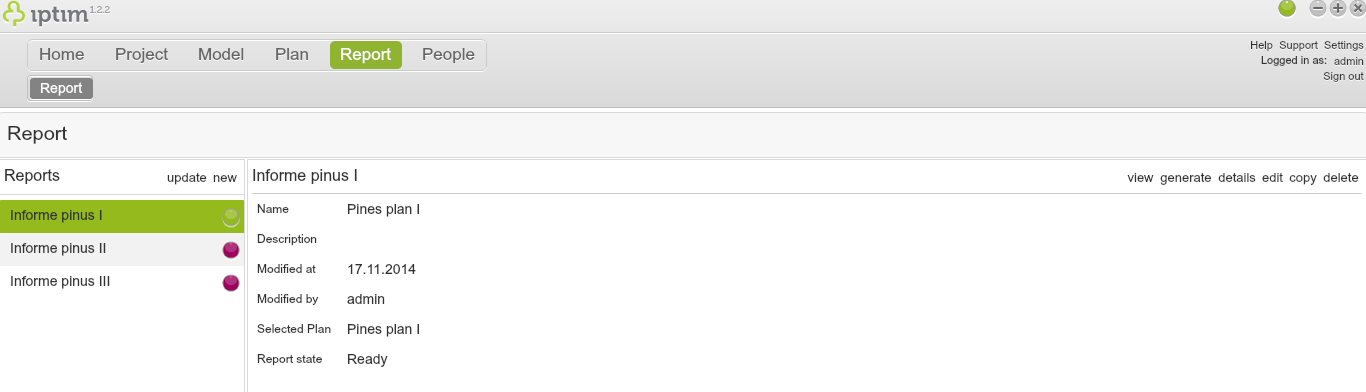
The main view of Report module.
__
Creating a new report
To create a new report:
- Click on the module Report.
- Click on new in the section Reports on the left side of your screen. A new window for selecting a source plan appears.
- Click on the drop-down menu and select a source plan for the report.
- Click Select.
- Enter a Name and Description for the new report.
- Click on accept.
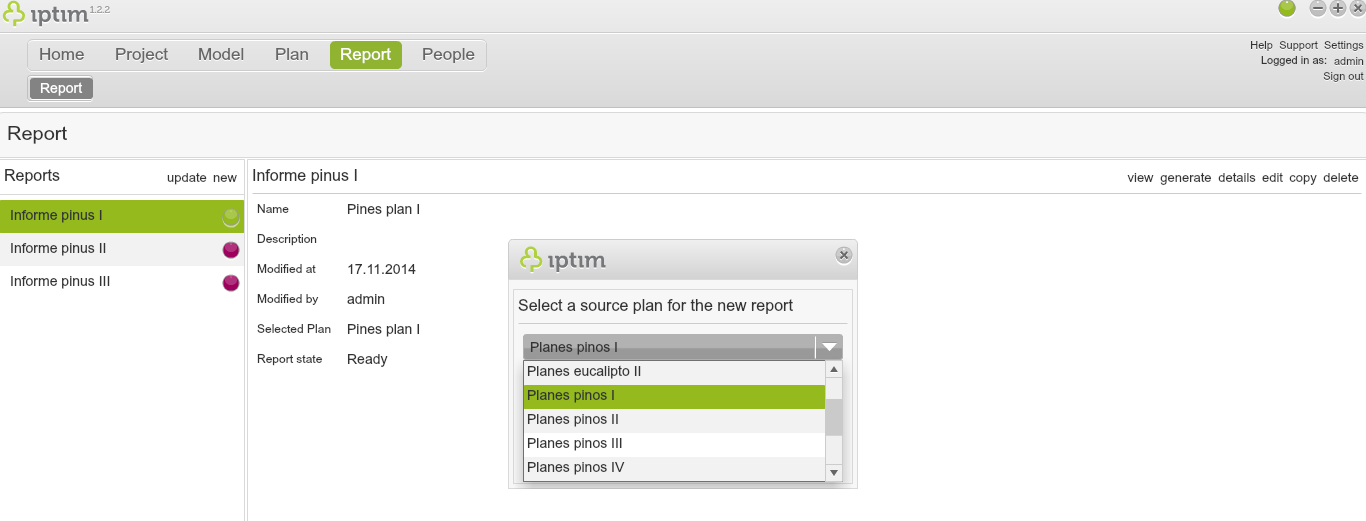
Select a source plan for a new report.
__
Editing a report
To edit a report:
- Click on the module Report.
- Click on a previously created report (see above).
- Click on edit on the right side of your screen (or double click on the report).
Button for editing report
__
Setting up a report
To set up a report:
- Click on the module Report.
- Edit a report (see above).
- Click on the button + in the section Report variables. A new variable will be created.
- Click on the Variable drop-down menu and select a variable.
- Enter a new Name for the variable.
- Modify the From date and To date corresponding to the reporting period that you wish to consider in the report.
- Enter the Reporting period and, with the use of the drop-down menu besides it, specify if you are referring to years, quarters or months.
- Click on a classifier in the section Classifiers. This classifier will be included in the report.
- Click on add. Repeat steps 7-8 to include all of the classifiers you want.
- Click on save.
- Click on close. A window will appear asking if you would like to save the report.
- Click on Yes.
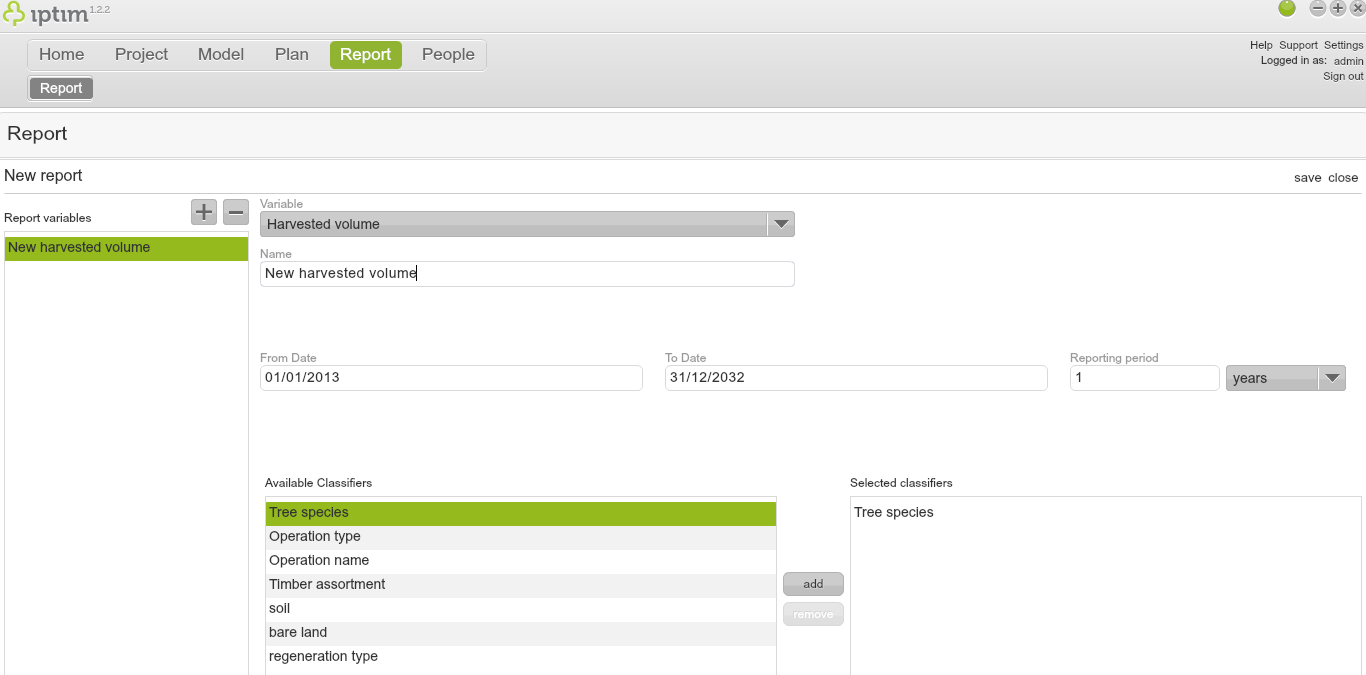
Setting up a report.
__
Generating a report
Once a report has been configured, you can generate it (this step is necessary in order to view the report).
- Click on the module Report.
- Select a report which has already been configured (see above). The report will have a red circle besides it if it has not been successfully generated. A green circle indicates that the report has been successfully generated.
- Click on generate on the right side of the screen. The circle will turn to yellow while the report is being generated. Once the report is successfully generated the circle will turn to green and a window will appear indicating that the report has been generated successfully.
- Click on OK.
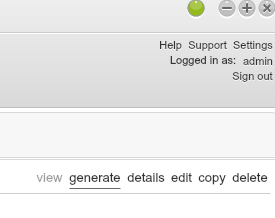
Button to generate a report.
__
Viewing and exporting a report
Once a report is generated, you can view it and export it:
- Click on the module Report.
- Click on a previously generated report (see above).
- Click on view on the right side of your screen. A new window will appear showing the report. The report includes all of the classifiers previously defined when setting up the report (see above).
- Click on the Format drop-down menu and select an option.
- Click on Export report.
- Select a folder and save the report. A window showing that the report has been successfully saved will appear.
- Click OK.
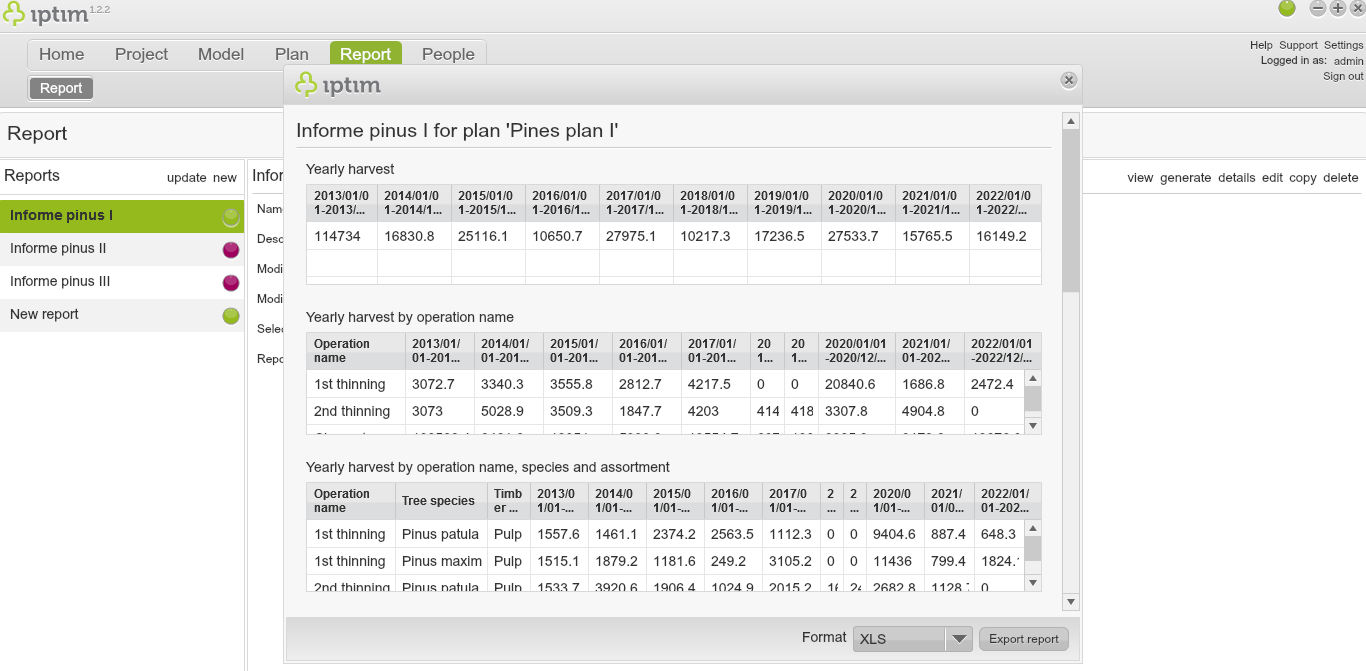
View a report before exporting.
Comments
0 comments
Please sign in to leave a comment.