
Why to filter?
Iptim allows you to filter data in your data sets (e.g. stand registers or sample plots). Filtering data allows you to discriminate, from your view, the data that is particularly relevant (e.g. certain stands, stands above a certain age, stands with a density between certain values).
Accessing the "filter window"
- Click on filter.
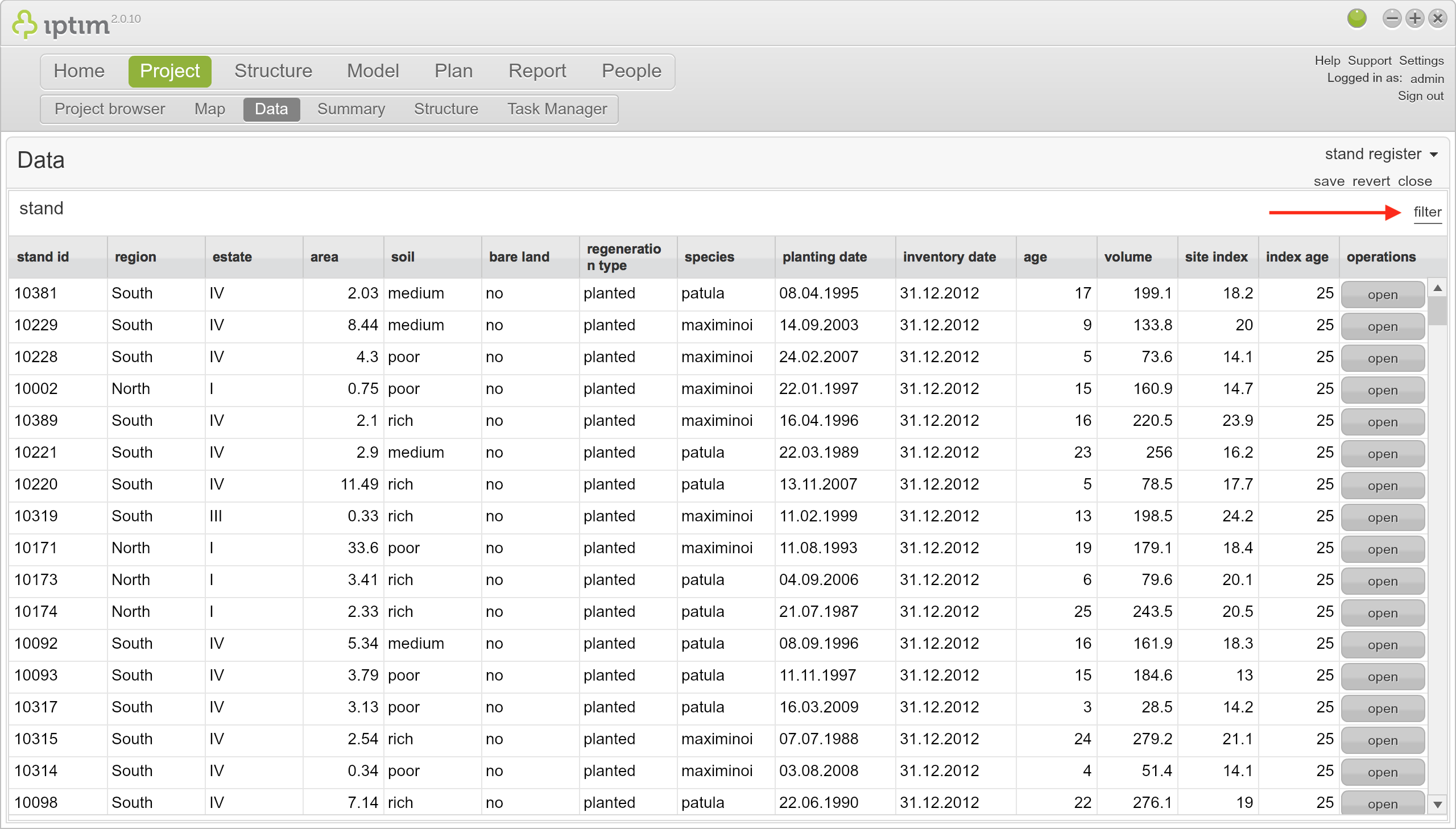
- The "filter window" is now visible:
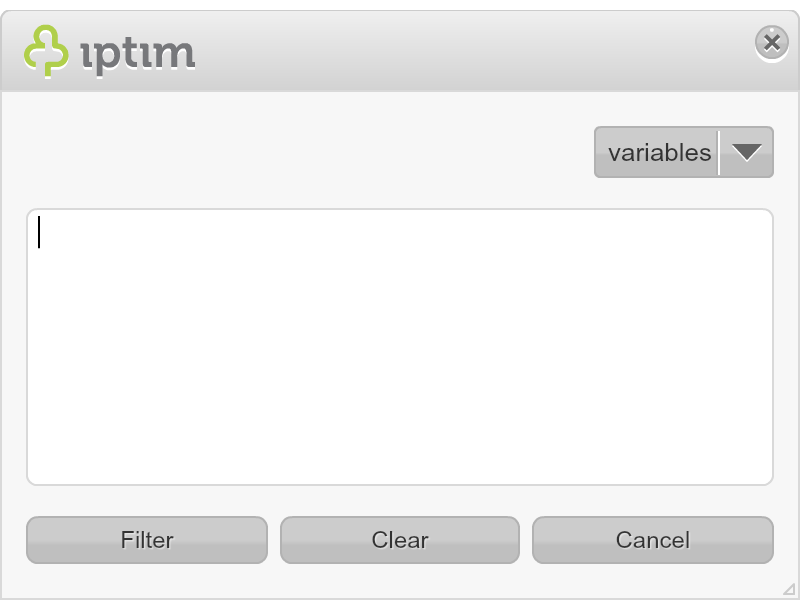
Basics of filtering
The filter instructions are composed of three components:
- the variable that you want to filter (e.g. stand, age, or any other variable in the data set)
- the connector, for example:
- equal to (=)
- greater than (>)
- greater or equal to (>=)
- smaller than (<)
- smaller or equal to (<=)
- not equal (!=)
- or (||)
- and (applied by entering another line)
- the restriction which needs to be set between quotation marks.
Examples: filtering one restriction
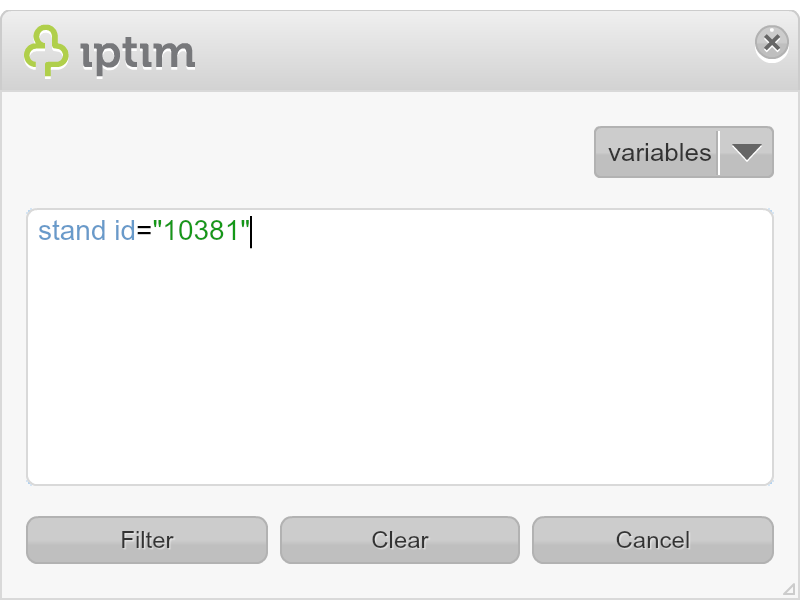
Example 1.1: Filter stand 10381 (NOTE: in this example, the stand id column is named "stand id").
- Write the following in the filter window:
stand id = "10381" - Click on Filter.
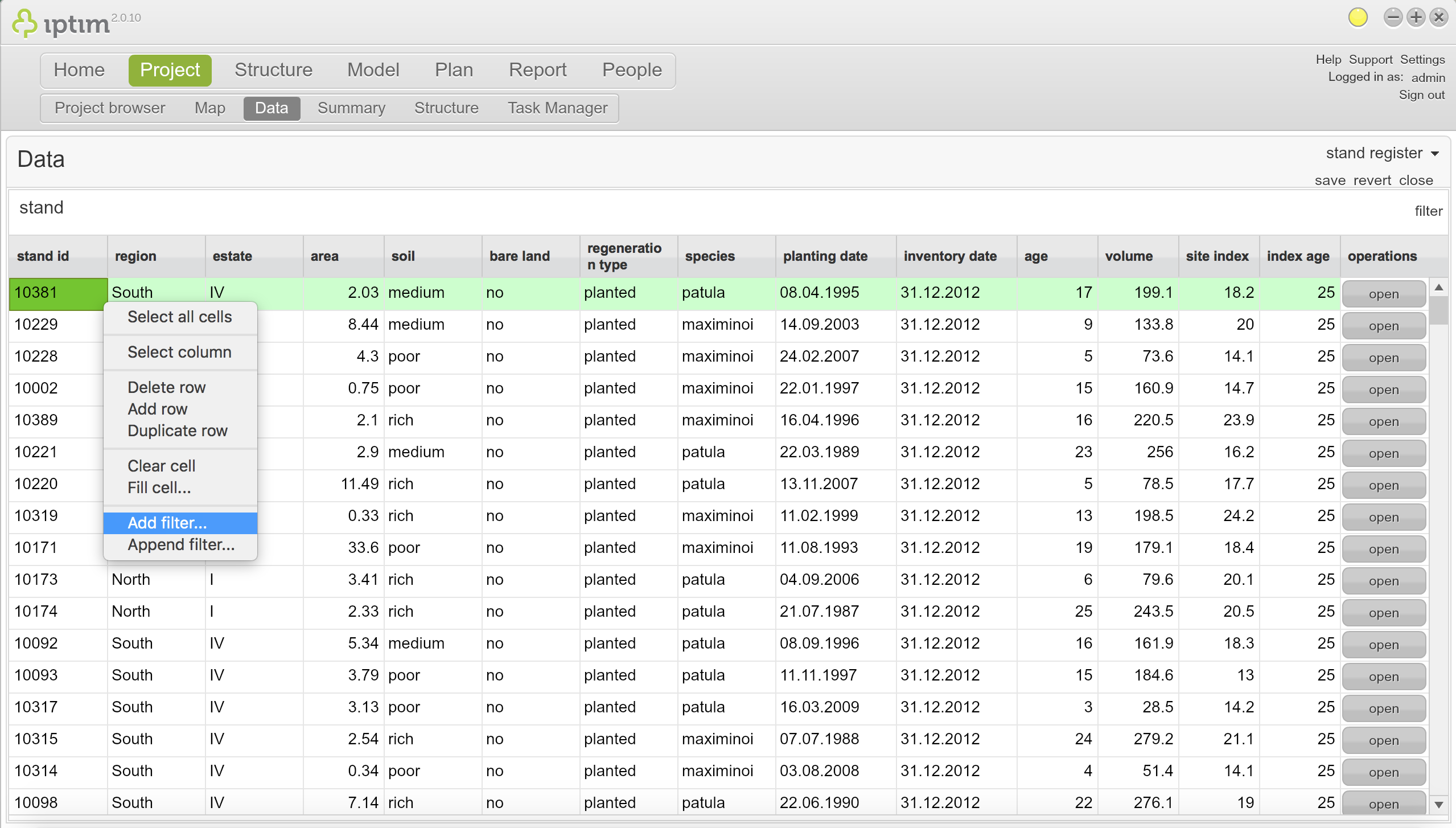
Example 1.2: Another option to filter a stand name 10381 is to:
- Highlight the stand that you want to filter by clicking on the respective "stand id" cell
- Right-click with the mouse.
- Click on Add filter
- Click on Filter.
Examples: filtering a range of values
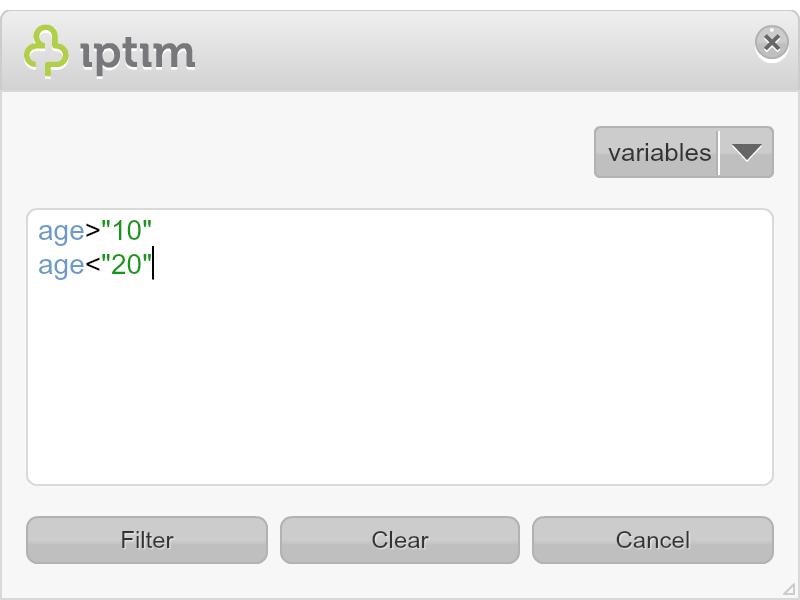
Example 2: Filter stands with age higher than 10 but lower than 20:
- Write the following in the filter window:
age > "10"
age < "20" - Click on Filter.
Examples: filtering multiple variables that do not share the same restriction
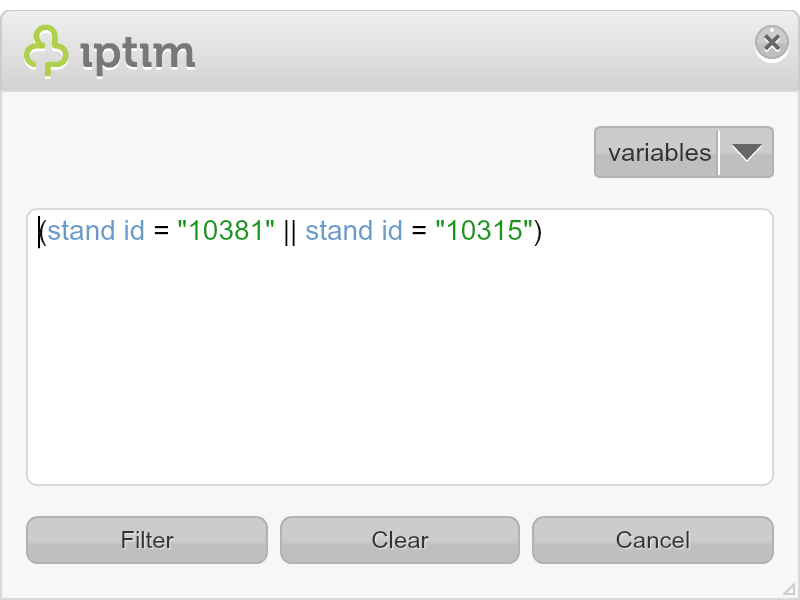
Example 2.1: Filter stands 10381 and 10315.
- Write the following in the filter window:
(stand id = "10381" || stand id = "10315") - Click on Filter.
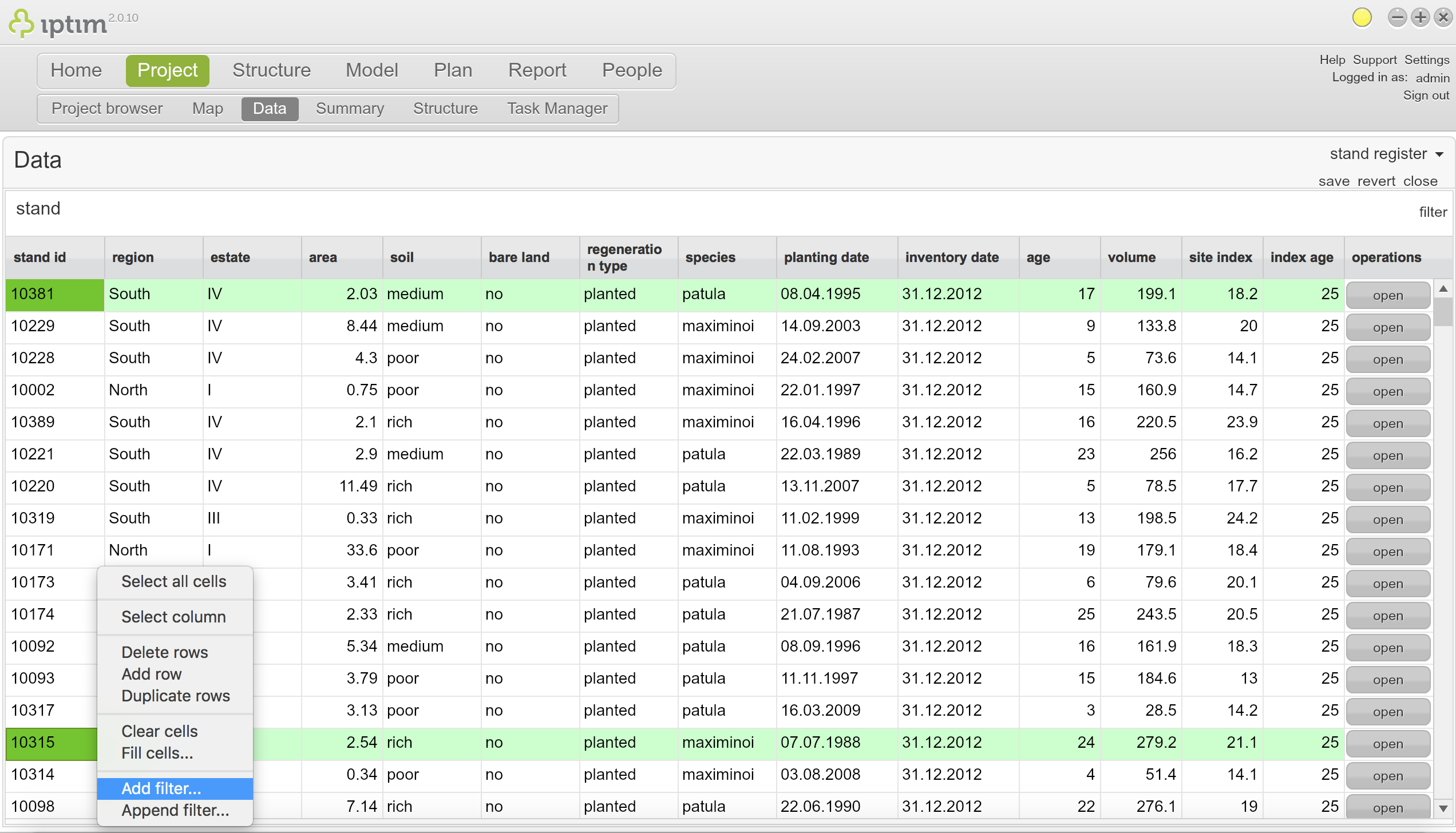
Example 2.2: Another option to filter stands 10381 and 10315:
- Highlight the first stand that you want to filter by clicking on the respective "stand id" cell
- Press Ctrl (in Windows) or Cmd (in Mac) and click on the other stand.
- Right-click with the mouse.
- Click on Add filter.
- Click on Filter.
Erase a filter
- Click on Clear (in the filter window).
- Click on Filter.
Comments
0 comments
Please sign in to leave a comment.