
General information
The submodule Inventory (module Model) offers tools to create inventory models by estimating height models and defining volume models. The objective is to use sample plot measurements to generate stand-level data sets. These data sets can then be used to model growth and yield curves and for the creation of optimised plans.
Please note that these modelling tools are designed to be used with reliable data for estimating model parameters.
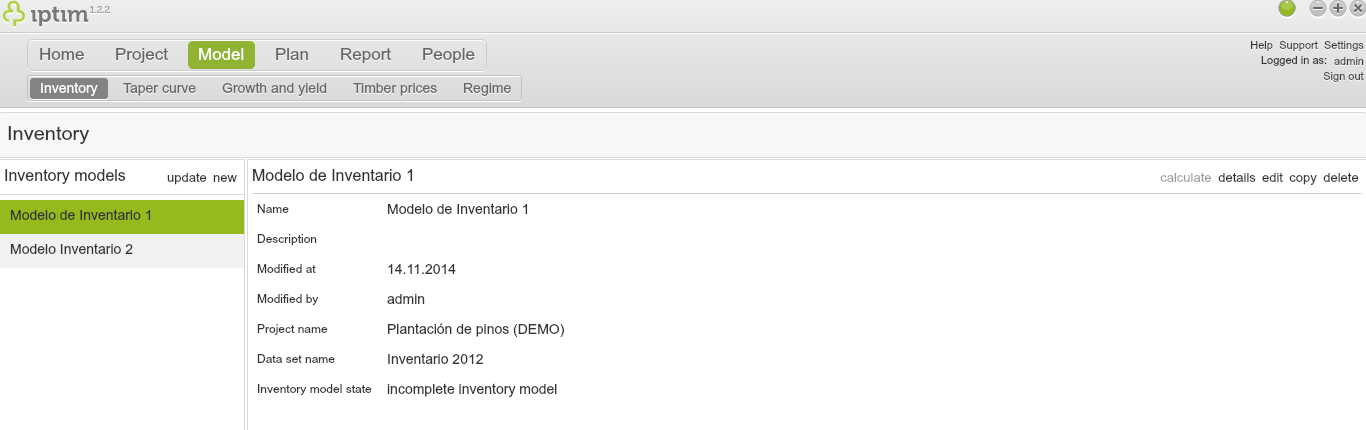
Inventory window main view.
__
Creating a new inventory model
To create a new inventory model:
- Click on the window Inventory in the module Model.
- Click on new on the left-hand side of your screen. A new window appears
- Select the Project/Dataset which includes the dataset to use for the modelling
NOTE: You will need to make one inventory model for each dataset. - If you wish, use the Stratify by switch buttons to set stratifies. For example, if you set on the switch button Main tree species, you will be able to make an inventory model for each tree species in your data.
- Click on Select.
- Enter a Name and Description.
- Click on accept.
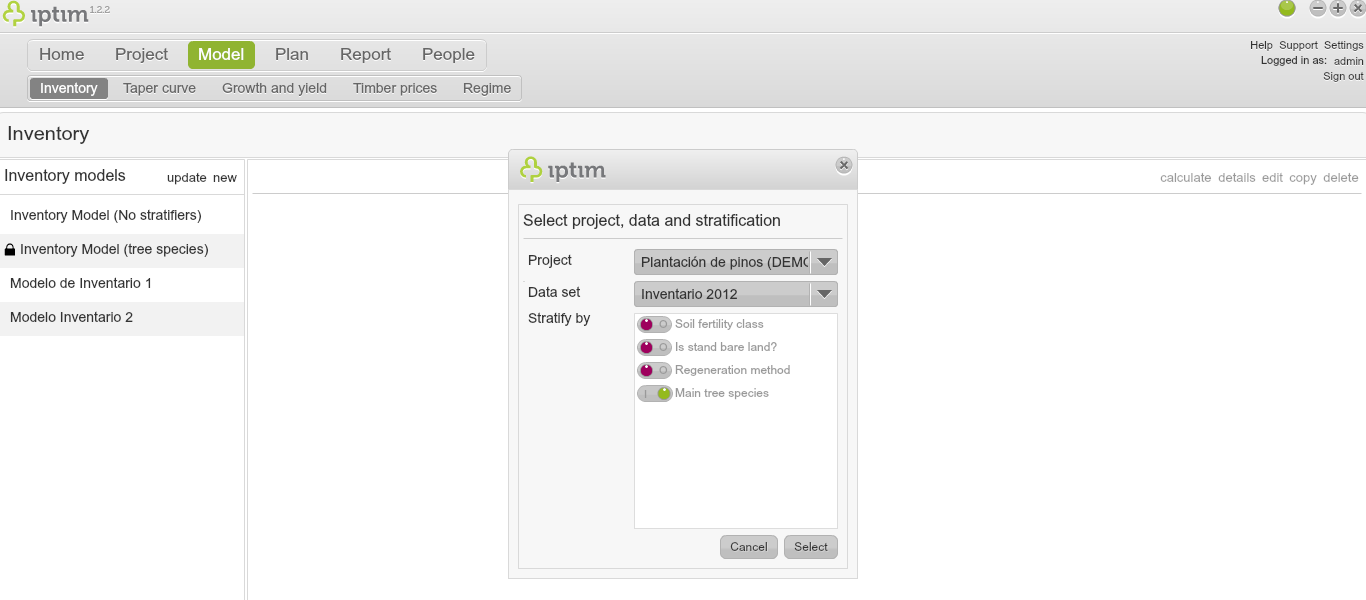
Entering Project, Dataset, and the stratification when creating a new inventory model.
__
Loading and configuration of models
Before estimating the height and volume models, you must load a model and adjust certain settings:
- Click on the window Inventory in the module Model.
- Click on a model in the section Inventory models on the left-hand side (to create a model see above).
- Click on edit on the right hand of your screen (or double-click on the model that you wish to edit).
- Select the strata that you want to configure in the section Strata on the left-hand side of your screen (if you did not stratify, click on All strata).
- Turn on the switch button Use tree heights if you want to estimate height models.
- Turn on the switch button Drop plots and trees from results data set if you want to include only stand level data in the data set that will be generated once the inventory model is calculated.
- Modify the Result data set name (optional). This will be the name of the data set that will be generated once the inventory model is calculated.
- If needed, modify the values of Site Index (SI), SI lower limit, SI upper limit. These values are used for the calculation of the data set generated once the inventory model is calculated.
- Click on save.
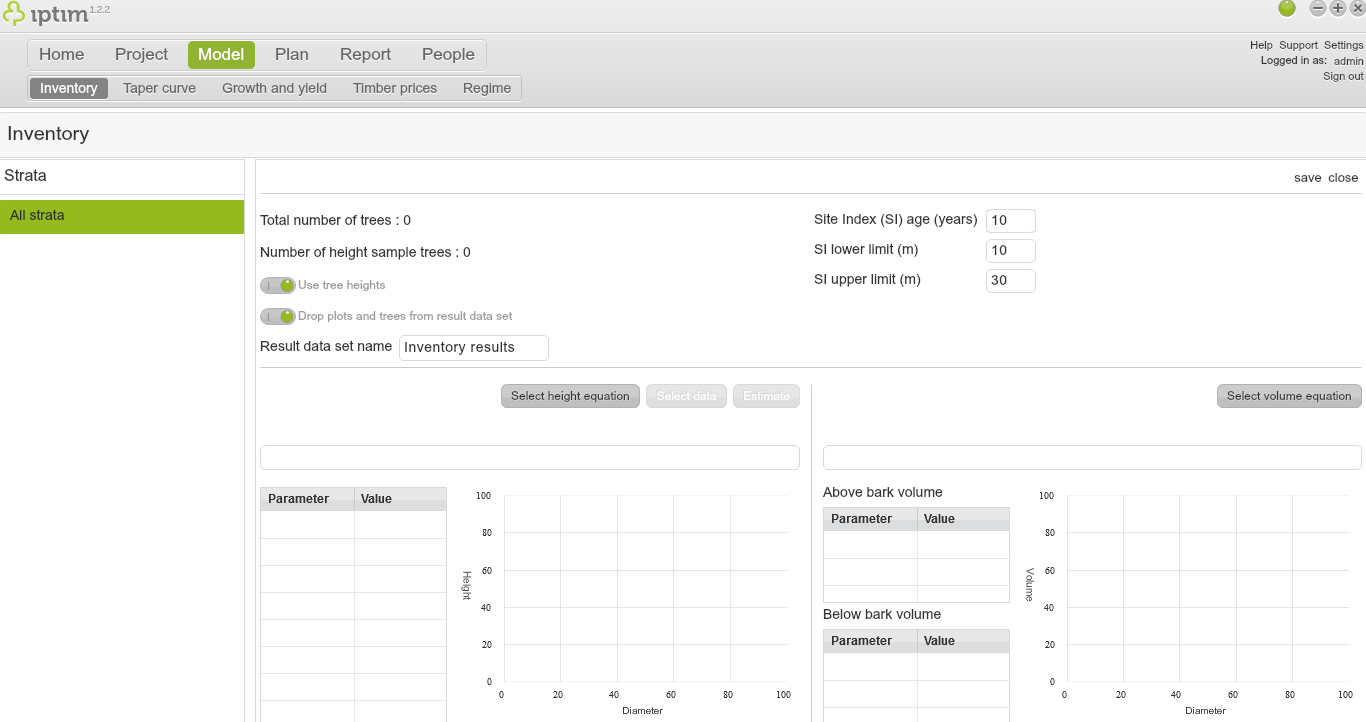
Estimation of height models
To define and estimate a height model:
- Click on the window Inventory in the module Model.
- Load and configure a model (see above).
- Click on Select height equation. A new window appears.
- Select Naeslund's height equation in the Select height model drop-down menu.
- Click on Select.
- Click on Select data. A new window appears.
- Select a Project from where you want to obtain the data set to use for the estimation of the height model.
- Select the Data set that you want to use to estimate the height model.
- Use the switch buttons in the Classifiers section (optional). If no switch button is turned on, you can then clear the switch button All data points (optional).
- Modify the value in Sample size (%) (optional).
- Click on Load.
- Click on Estimate. Once the model is estimated, a new window appears with information on the Estimation statistics report.
- Click on Save report.
- Select a folder and save the report. A new window informing that the report has been saved succesfully appears.
- Click on OK.
- Click on save on the right hand side of your screen.
- Click on close. If you have not defined a volume model, a window warning that the inventory model is not complete will appear.
- Click on Yes. A window asking if you wish to save before closing will appear.
- Click on Yes.
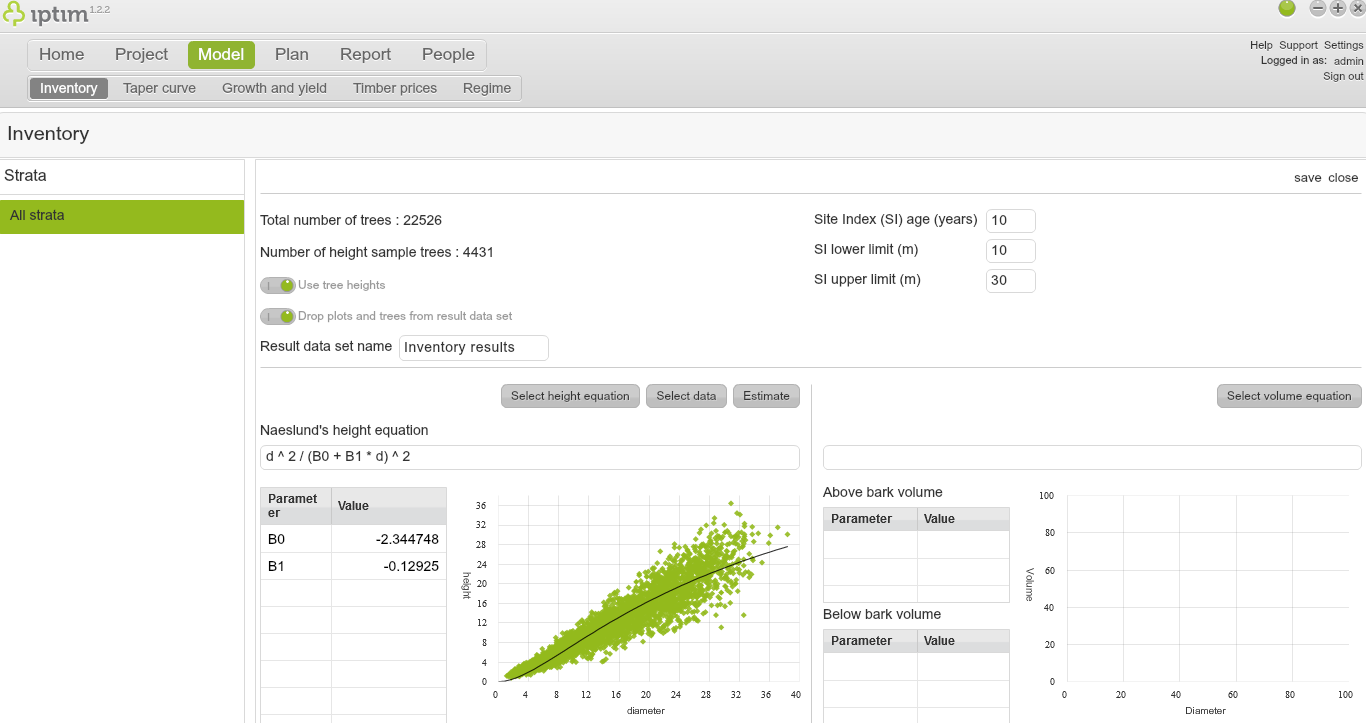
View after estimating height function.
__
Definition of volume model
To define a volume model for your inventory models:
- Click on the window Inventory in the module Model.
- Load and configure a model (see above).
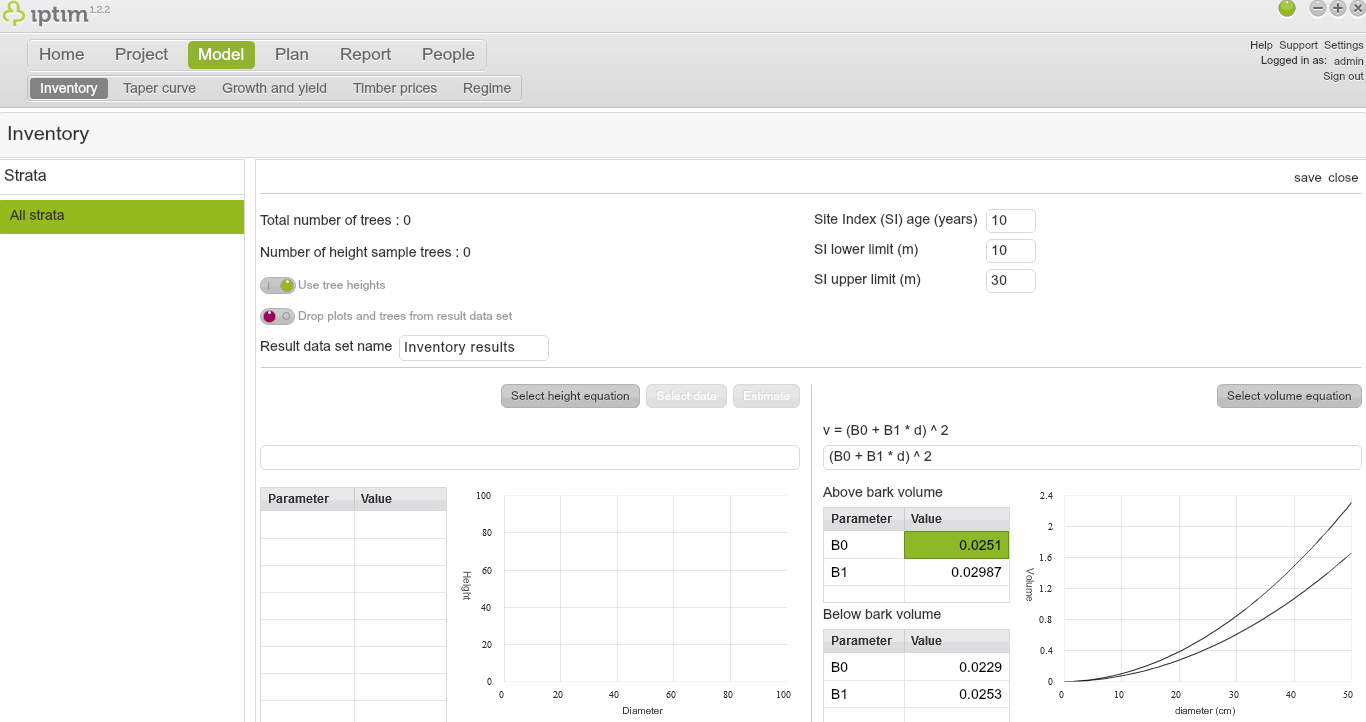
- Click on Select volume equation. A new window appears with a drop down menu showing volume equation options.
- Click on V = (B0 + B1 * d)^2.
- Click on Select.
- Double click on the cells under the columns Value in the two matrices to enter new values. In Above bark volume enter B0=0.0251 B1=0.02987; in Below bark volume enter B0=0.0229 B1=0.0253.
- Click on save.
- Click on close. If you have not defined a volume model, a window warning that the inventory model is not complete will appear.
- Click on Yes. A window asking if you wish to save before closing will appear.
- Click on Yes.
Calculation of inventory model
Once a height model has been estimated, and a volume function has been defined (see above), it is possible to calculate an inventory model:
- Click on the window Inventory in the module Model.
- Click on the model that you wish to calculate.
- click on calculate on the upper right part of your screen.
If the calculation is successful, you will be able to observe the new data set in the corresponding project in the Project browser window.
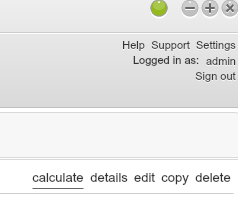
Button to calculate the inventory model.
__
Comments
0 comments
Please sign in to leave a comment.