
General information
The window Growth and yield in the module Model offers modelling tools to construct and estimate growth and yield models using the user's data.
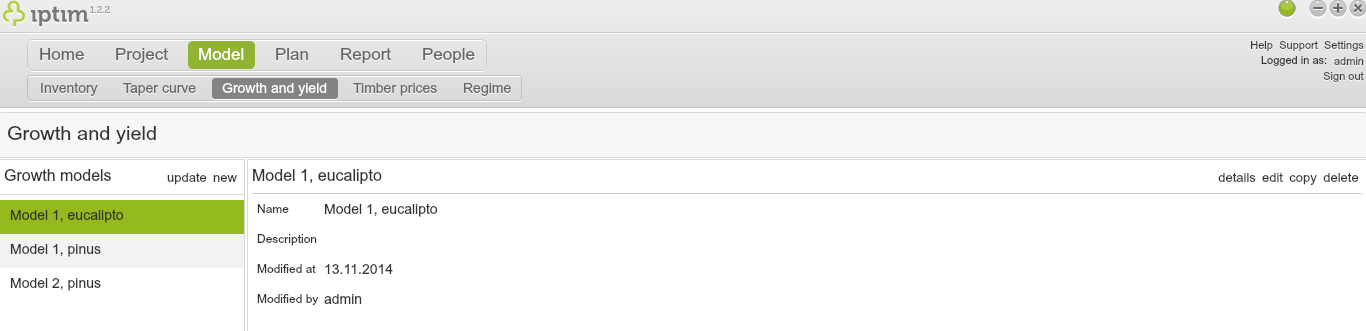
The main view of Growth and yield window.
__
Creation of a new growth model
To create a new Growth and Yield Model:
- Click on the window Growth and yield in the module Model.
- Click on new on the left part of your screen.
- Select the Project you want to link the growth model to. This means that you can use the model for the selected project and all other projects that share the same data structure.
- Use the switch buttons Stratify by to create stratified. For example, if you set on the switch button Main tree species, you will be able to create a separate growth model for each species in your data.
- Click on Select.
- Enter a Name and a Description.
- Click on accept.
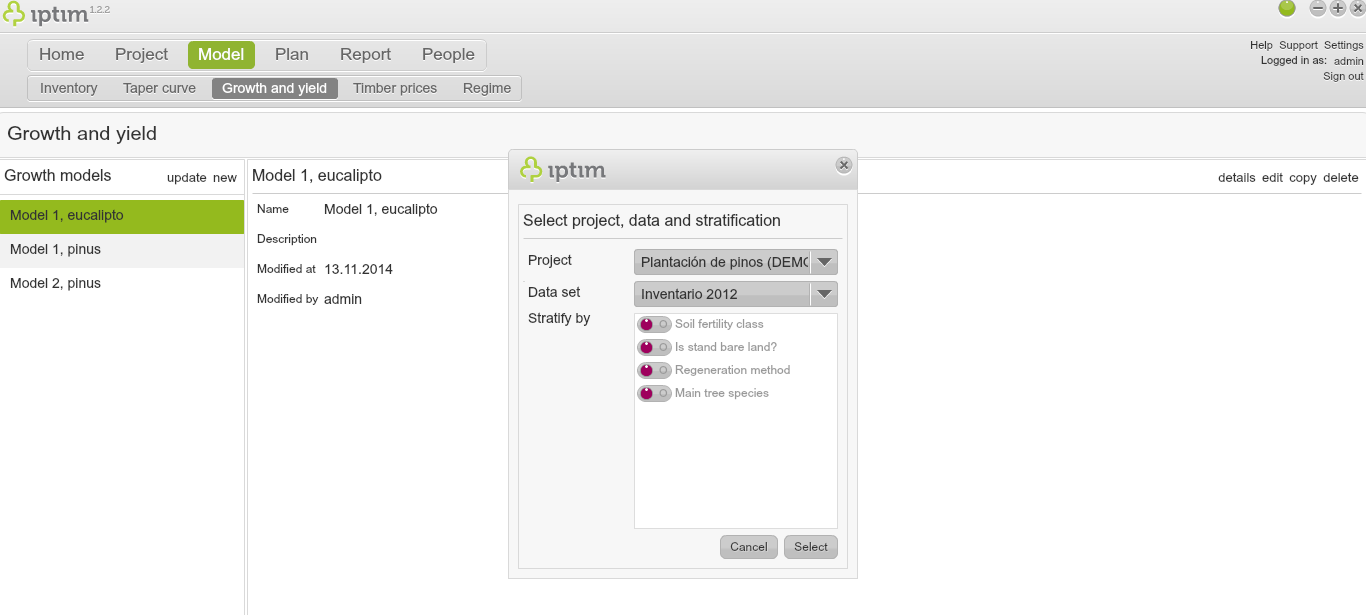
Selecting a Project, Dataset, and Stratified when creating a growth model.
__
Editing a new growth model
To edit a growth model:
- Click on the window Growth and yield in the module Model.
- Click on a model to edit.
- Click on edit in the right part of your screen (or double click on the model).
Button for edit a growth model.
__
Estimation of model parameters
To estimate model parameters:
- Click on the window Growth and yield in the module Model.
- Edit a new model (see above).
- Click on a Strata on the right of your screen. If there are no strata, click on All strata.
- Click on the Select model. A new window will open where you can choose predefined growth models.
- Click on a predefined model (e.g. select Linear volume growth model as an option for a linear model, and Chapman-Richards volume growth model as an option for a non-linear model).
- If needed, change the Model timestep from year to month.
- Click on Select.
- Click on Select data.
- Select the Project, which includes the measurement data you want to use for model estimation.
- Use the switch buttons in Classifiers to allow different classifications.
- If needed, turn off the switch button All data points.
- If needed, modify the value in Sample size (%).
- Click on Load.
- Click on Estimate. A new window appears asking you to confirm that you want to estimate model system parameters.
- Click on Estimate. A window appears indicating the generation of an estimation report.
- Click on Save report.
- Save the file in a folder in your computer. A window appears indicating that the file has been saved succesfully.
- Click on OK.
- Click on save on the right hand side of the screen.
- Click on close. A window appears asking if you want to save the model before closing.
- Click on Yes.
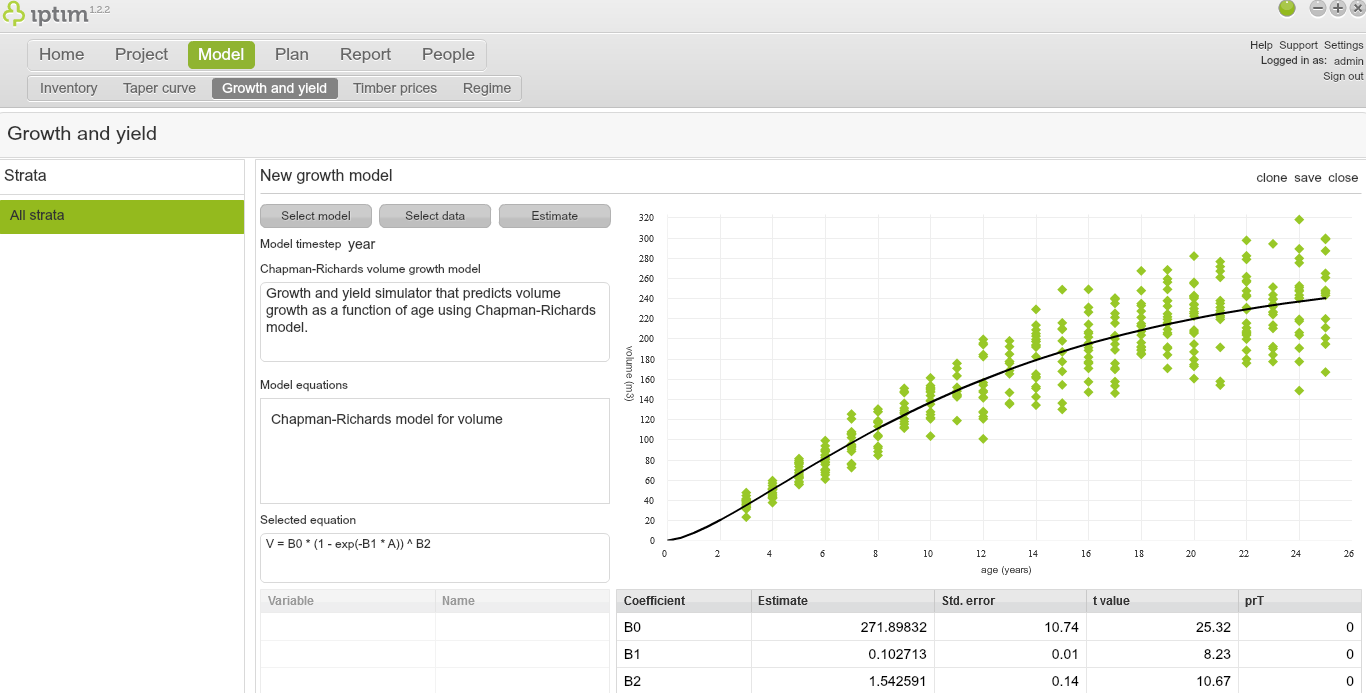
Estimation of a non-linear model.
__
Manual input of parameters
To manually input and/or modify parameters:
- Click on the window Growth and yield in the module Model.
- Edit a new model (see above).
- Estimate a model (see above).
- Double click on the parameter value that you wish to modify and click 'Enter'.
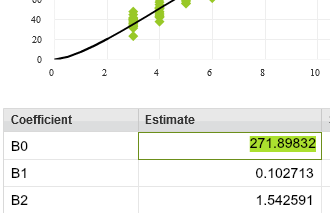
Manually modifying a value.
Comments
0 comments
Please sign in to leave a comment.