
General information
- The submodule Project browser in the module Project offers tools to manage projects and datasets.
- Iptim now organizes the data in such way that sample plots and stand registers are divided in different datasets.
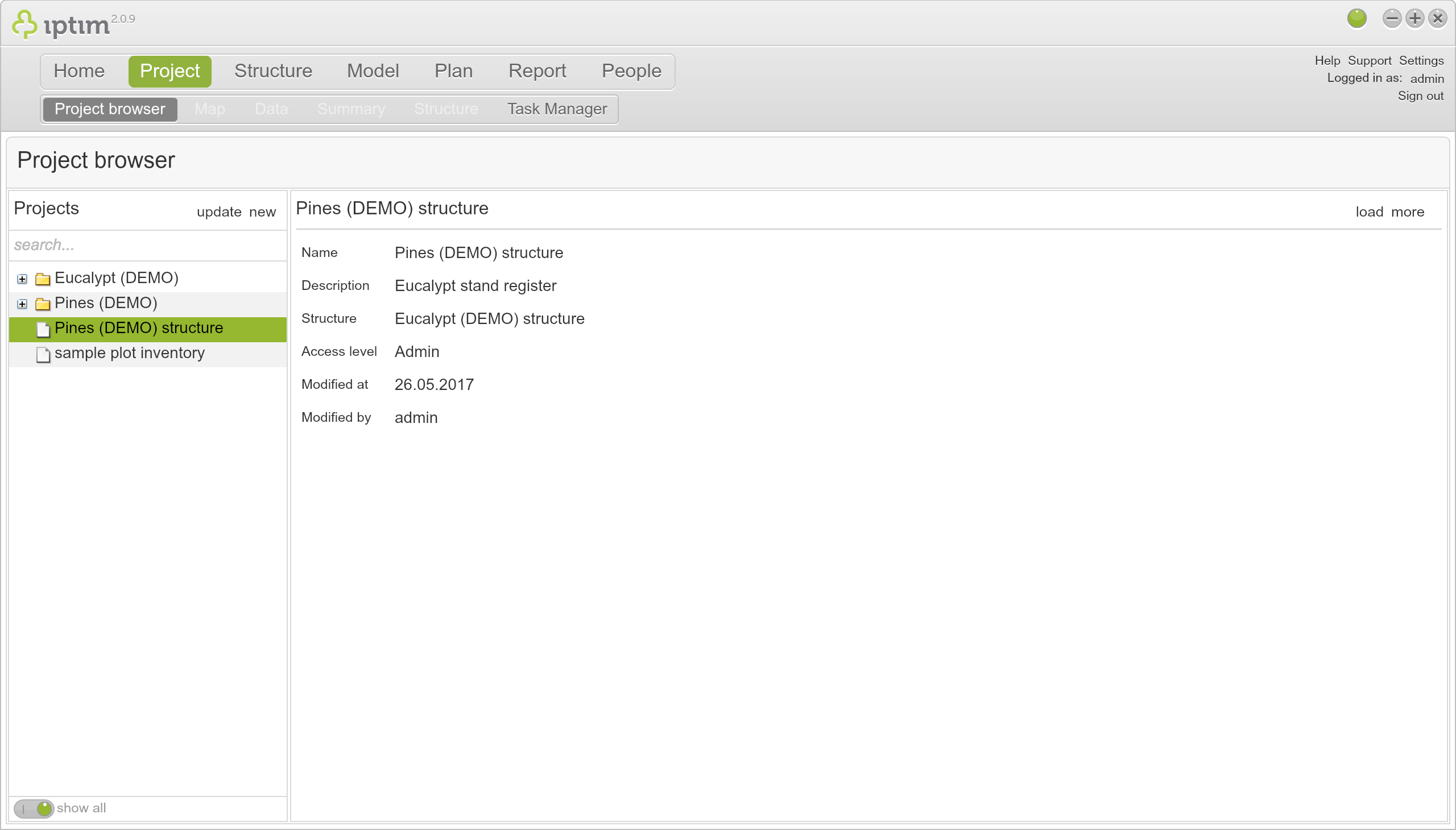
__
Create a new project
- Click on the submodule Project browser in the Project module.
- Click on new on the upper-left part of your screen.
- Choose the option New project.
- Select one of the options:
- New project with linked structure: With this option, the user creates a project from scratch with a structure linked to the structure of an existing dataset.
- Copy template project: This option allows using a predefined template which includes
- Estonian Forest Inventory
- FI stand register
- Latvian VMD
- sample plot inventory. This is a good option for projects that include sample plots.
- SE stand register
- stand register. This is a good option for projects that include stand registers.
- Copy existing project: This option allows the user to create an exact copy of an existing project (including its data sets).
- Enter a "project name"
- If you wish to place the project in a distinct group (folder), then, under "Group", write the name of the folder were you would like to place the project.
- Enter a "project description" for your new project.
- Click on save on the upper-right part of your screen.
__
Importing data
We have created a separate article explaining in detail how data sets are created and data is imported into a project:
__
Loading data sets
Data sets in each project need to be loaded to view and modify them in the submodules Map, Data, Summary, Structure, and Task manager.
- Select a data set within a project in the section "Projects" on the left-hand side.
- Click on load (you can also simply double-click on the data set). Once you have loaded the data set, an icon in the form of a lock will appear beside the data set. While a data set is loaded, no other user can modify the corresponding data. You can see who has loaded the data set by hovering the cursor on top of the lock icon.
__
Options for data sets
- Select a data set within a project in the section "Projects" on the left-hand side.
- Click on more on the right-hand of your screen. The options are:
- Load (read only): the data set is loaded as read only, i.e. it cannot be modified.
- Change structure: allows you to unlink or select a different structure.
- Share: opens up a window specifying the permissions of other users for you to modify.
- Delete: deletes the data set.
- Import: import data for that data set.
- Export: exports the data set in an Excel file after specifying the location in your computer.
Comments
0 comments
Please sign in to leave a comment.