
General information
The window Structure in the module Project presents the data structure of the data set. The structure is presented in a hierarchical tree.
For example, if the data set has three data levels such as stand, sample plot and tree, the structure will show these three levels at a higher hierarchical level and all of the variables associated to each level in lower levels.
Please note that to be able to open the window Structure, you need to upload at least one data set. More information in Project browser.
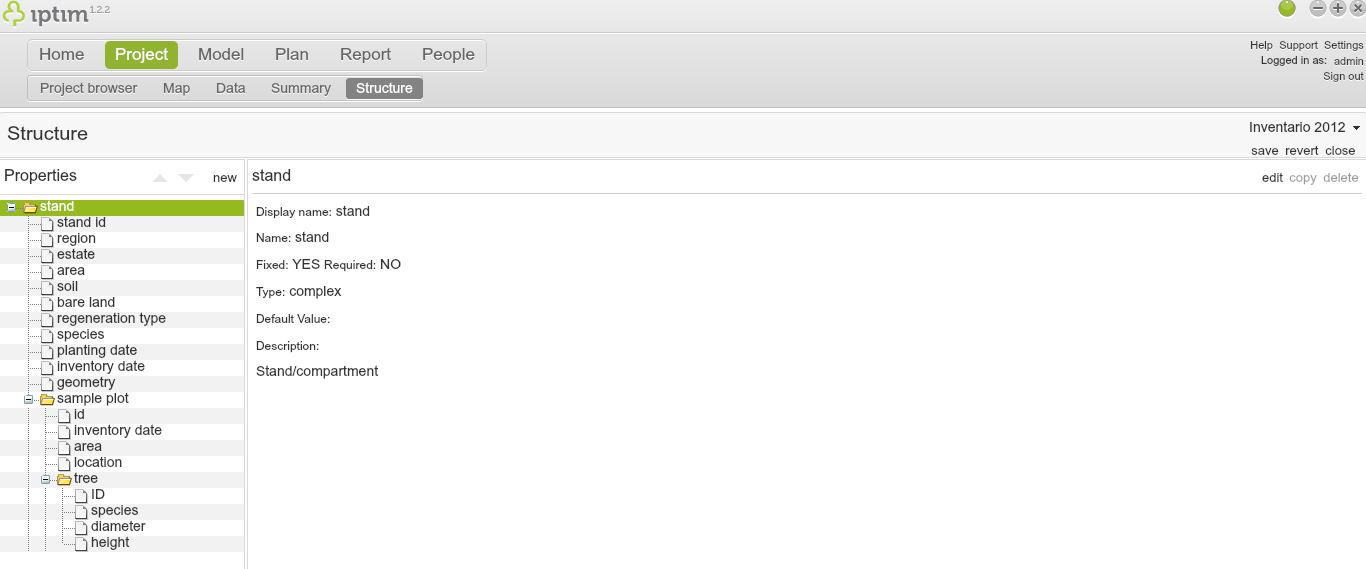
Main view of 'Structure' window
__
Types of variables in the data structure
Iptim's data structure allows adding and modifying the following types of variables:- Numerical variable: this is the most common variable which is used to quantify and has an important role in the optimization processes in Iptim. Examples include area, age, and tree volume.
- Text variable: Although not used directly in optimization, text variables are important for descriptive purposes. Examples include names of regions.
- Date variable: as it name suggests, these are variables that specify a date.
- Category variables: these are common variables in inventory data. These variables are assigned with pre-derfined categories. Examples include species (e.g. pine, eucalyptus), types of soil (e.g. rich, poor).
- Option variables: These are boolean variables which take values such as "yes/no", "1/0" or "true/false".
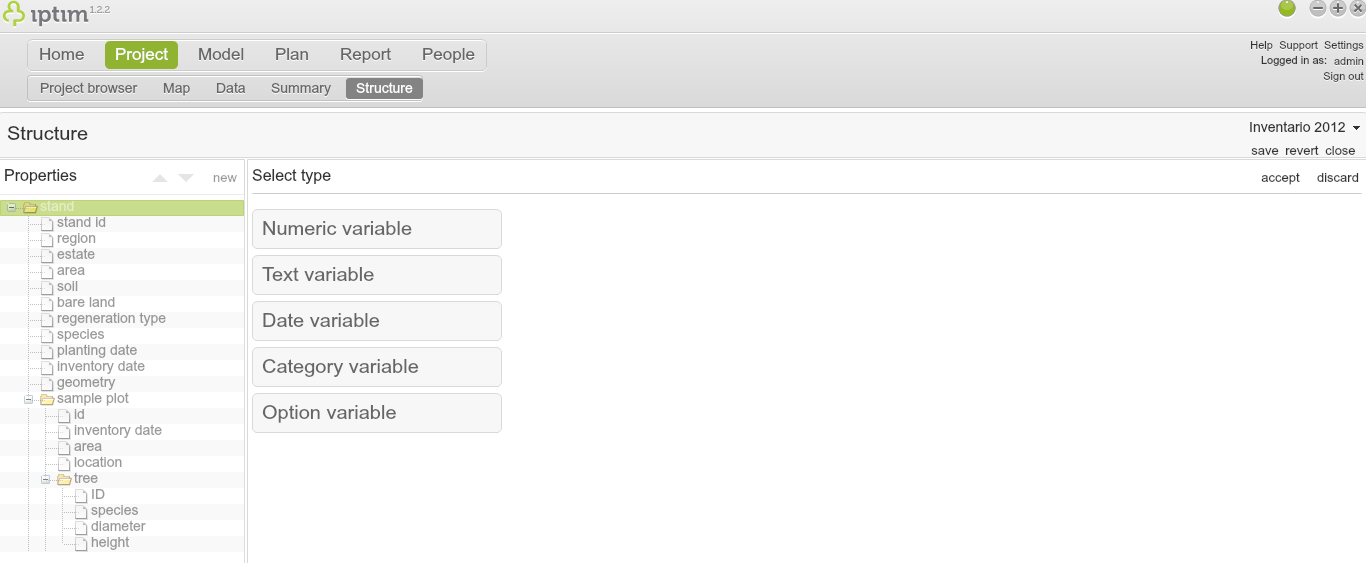
Different types of variables
__
Adding a numerical variable.
To add a new numerical value:
- click on the window Structure in the module Project.
- click on the level in which you want to add the new variable.
- click on new.
- click on Numerical variable.
- enter a display name.
- enter a name.
- click on kind and select an option (optional).
- enter values for minimum and maximum values.
- enter a value in display precision according to the number of decimals that you wish to allow.
- if you wish, you can turn on the switch button required to set the variable as obligatory. In such a case, enter a default value.
- click on accept.
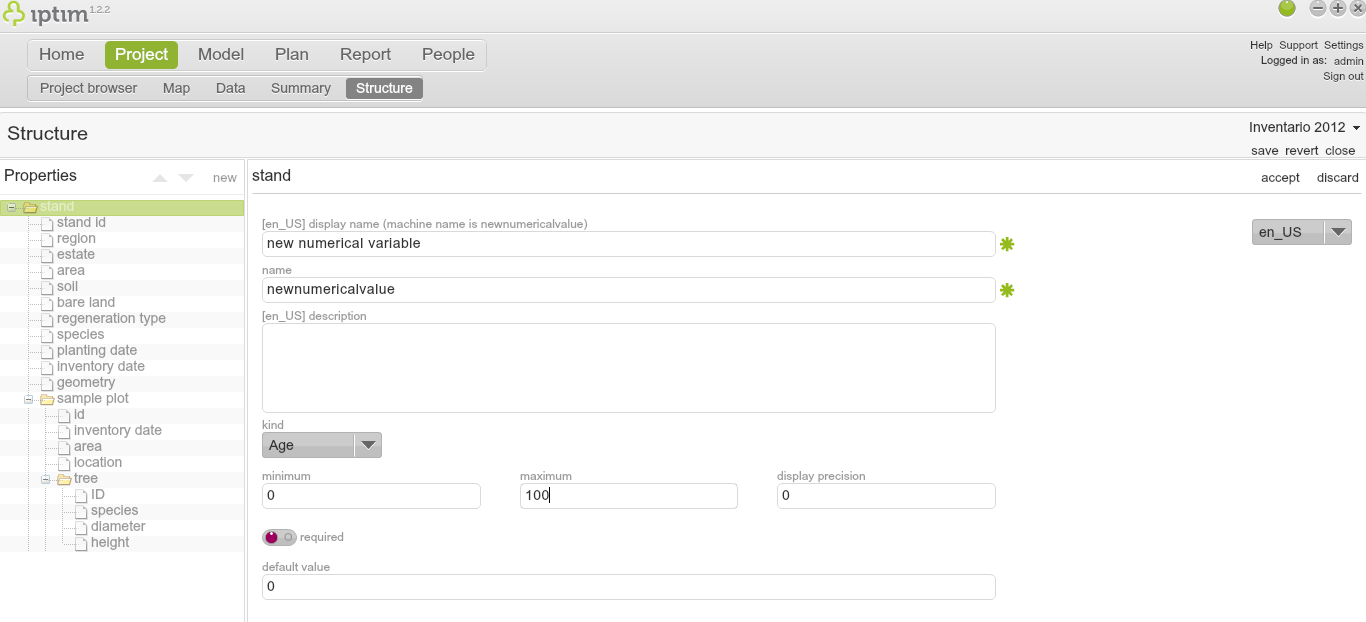
Adding a new numerical value.
__
Adding a text variable
To add a new text variable:
- click on the window Structure in the module Project.
- click on the level in which you want to add the new variable.
- click on new.
- click on Text variable.
- enter a display name.
- enter a name.
- enter an expression.
- enter a description.
- if you wish, you can turn on the switch button required to set the variable as obligatory. In such a case, enter a default value.
- click on accept.
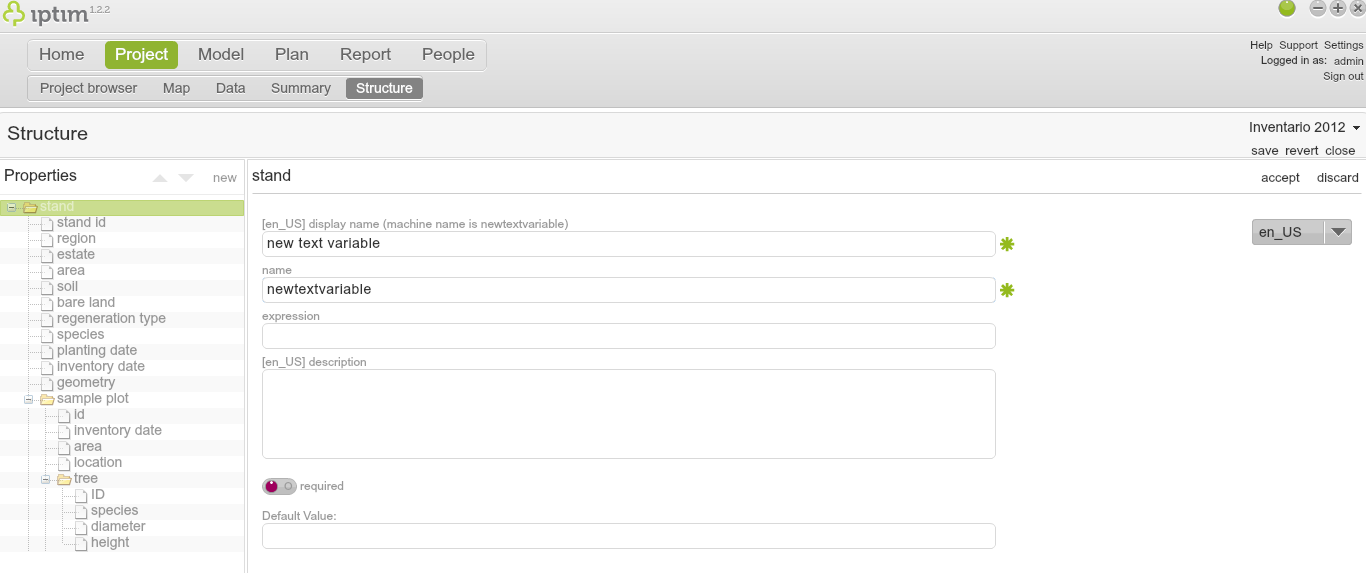
Adding a new text variable
__
Adding a date variable
To add a new date variable:
- click on the window Structure in the module Project.
- click on the level in which you want to add the new variable.
- click on new.
- click on Date variable.
- enter a display name.
- enter a name.
- enter a description.
- enter a minimum and maximum date to create limits to the values that the variable can take.
- if you wish, you can turn on the switch button required to set the variable as obligatory. In such a case, enter a default value.
- click on accept.
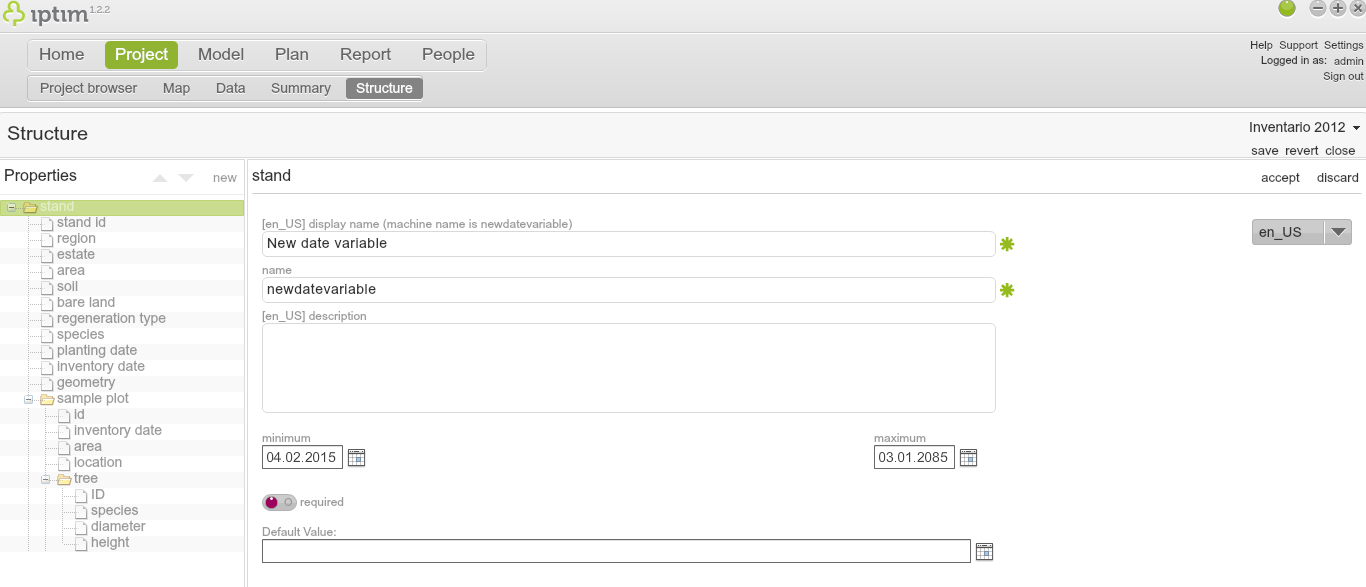
Adding new date variable.
__
Adding a category variable
To add a new categorical variable:
- click on the window Structure in the module Project.
- click on the level in which you want to add the new variable.
- click on new.
- click on Category variable.
- enter a display name.
- enter a name.
- enter a description.
- if you wish, you can turn on the switch button required to set the variable as obligatory. In such a case, enter a default value.
- click on new on the lower-right part of your screen.
- modify the name of the first option (optional). If you want to add more options, repeat steps 9 and 10.
- click on accept.
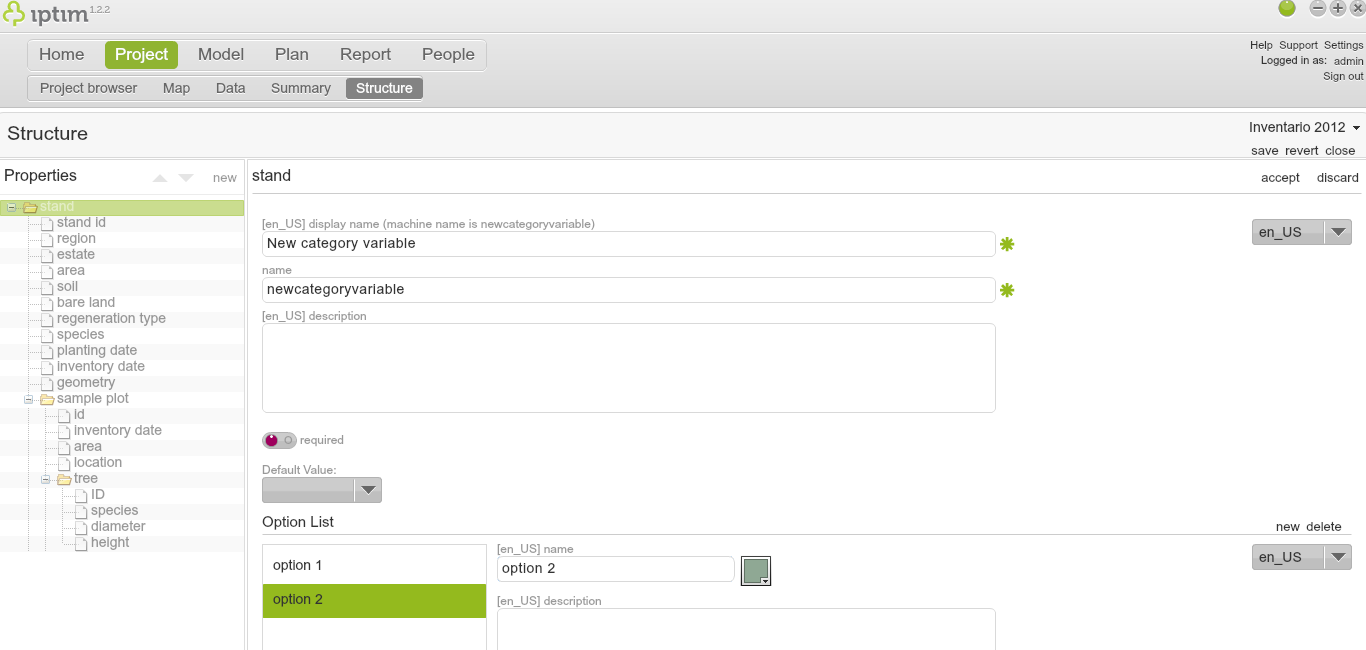
Adding a new categorical variable
__
Adding an option variable
To add a new option variable:
- click on the window Structure in the module Project.
- click on the level in which you want to add the new variable.
- click on new.
- click on Option variable.
- enter a display name.
- enter a name.
- enter a description.
- if you wish, you can turn on the switch button required to set the variable as obligatory. In such a case, enter a default value.
- click on accept.
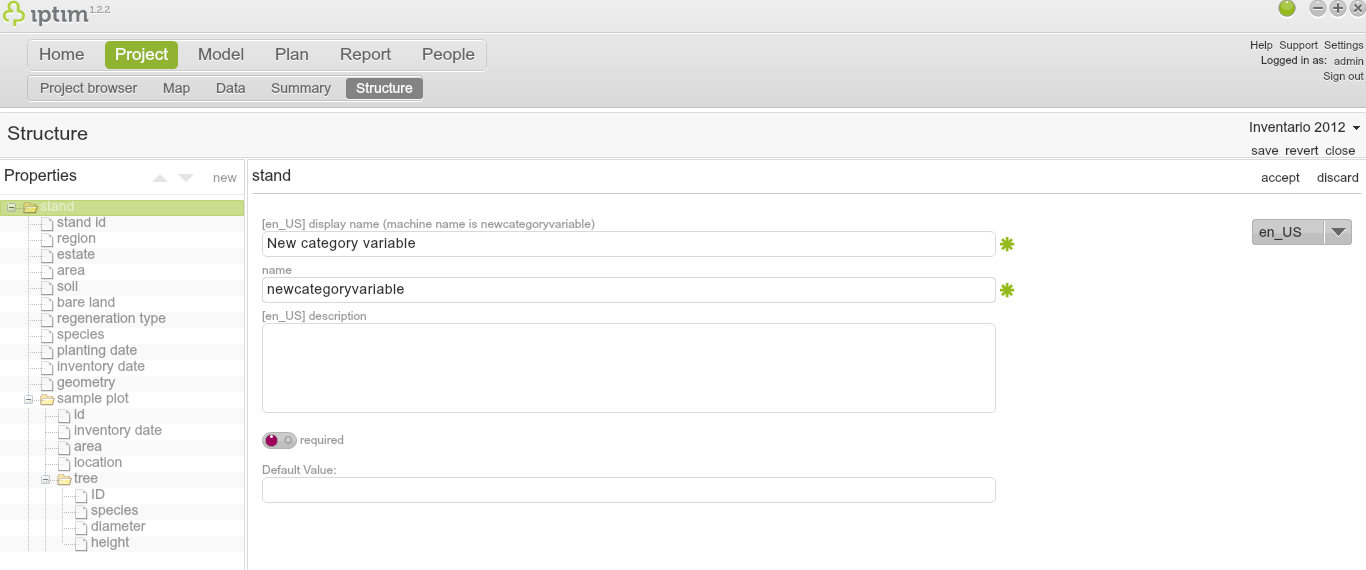
Adding a new option variable.
__
Editing a variable
If you want to edit a variable:
- click on the window Structure in the module Project.
- click on the variable that you wish to edit.
- click on edit.
- modify the information that you wish to edit.
- click on accept.
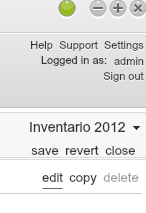
Edit button.
__
Changing data sets
If the user has loaded more than one data sets, it is possible to change the data sets that is being analyzed in the Structure window:
- click on the window Structure in the module Project.
- click on the data set in the upper right part of your screen. A list of all loaded data sets will appear.
- click on the data set that you wish to open.
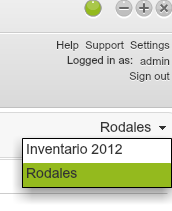
Changing data sets in the Structure window.
Comments
0 comments
Please sign in to leave a comment.