
General information
The window Data in the module Project offers tools to visualize, modify and add data. When opening the data you can observe a data sheet including the loaded data.
Please note that to view the Data window, at least one data set must have been loaded. More information in Project browser.
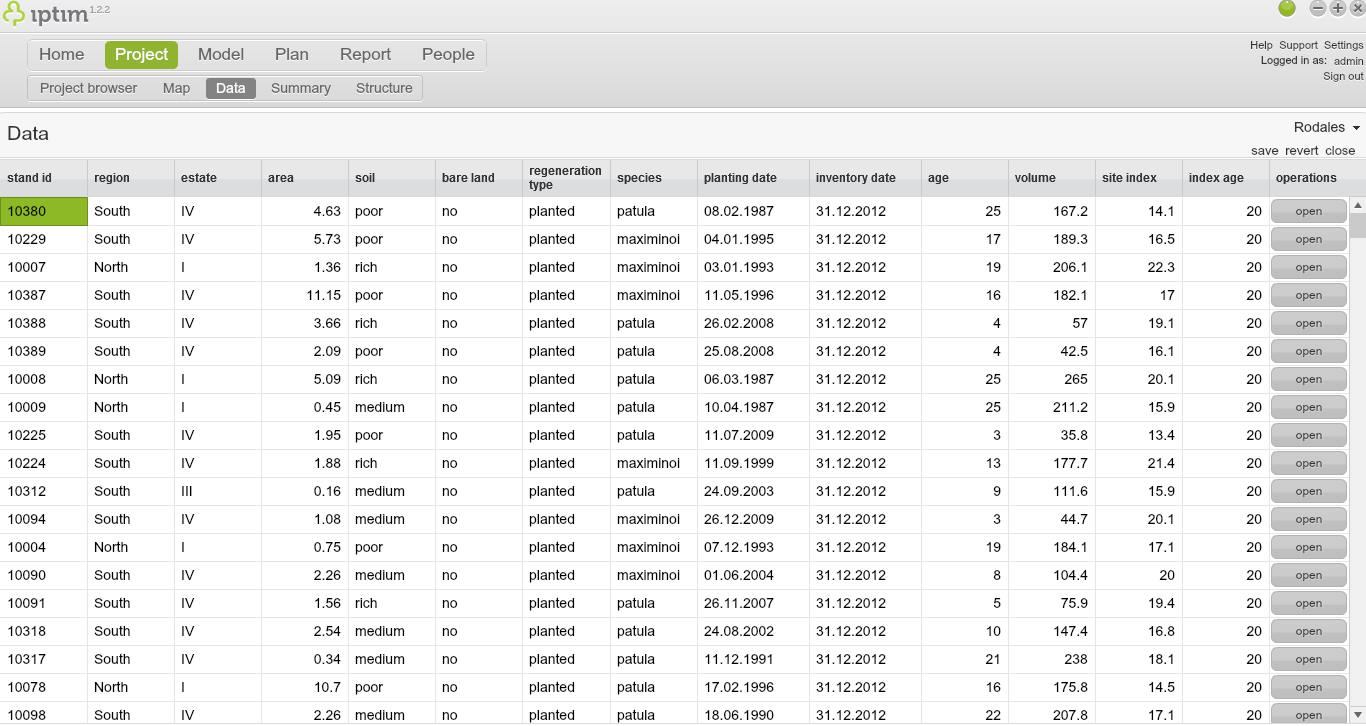
Main view of the window Data.
__
Switching between data sets
If you load more than one data set, you can easily switch between these data sets in the Data window:
- click on the window Data in the module Project.
- click on the data set in the upper right part of your screen. You will be able to see the loaded data sets.
- click on the data set which you want to visualize.
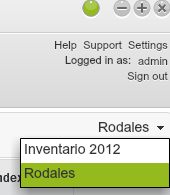
Switching between data sets in the Data window.
__
- go to the sample plot level (see above)
- click on Open in the column tree on the row of any stand. The sample plot level information will be opened.
- if you wish to return to the sample plot level, click on Back at the bottom left part of your screen.
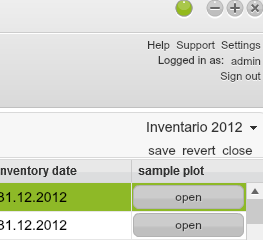
Switching from the stand level to the sample plot level.
__
Modifying operations of activated plans
Once a plan has been created, executed and activated, it will be possible to observe and modify management regimes related to each data set (more information in Plan). To modify operations on activated plans:
- click on the window Data in the module Project.
- click on open in the column operations.
- double click on the cell that you wish to modify.
- click on save.
- click on Back to return to main view.
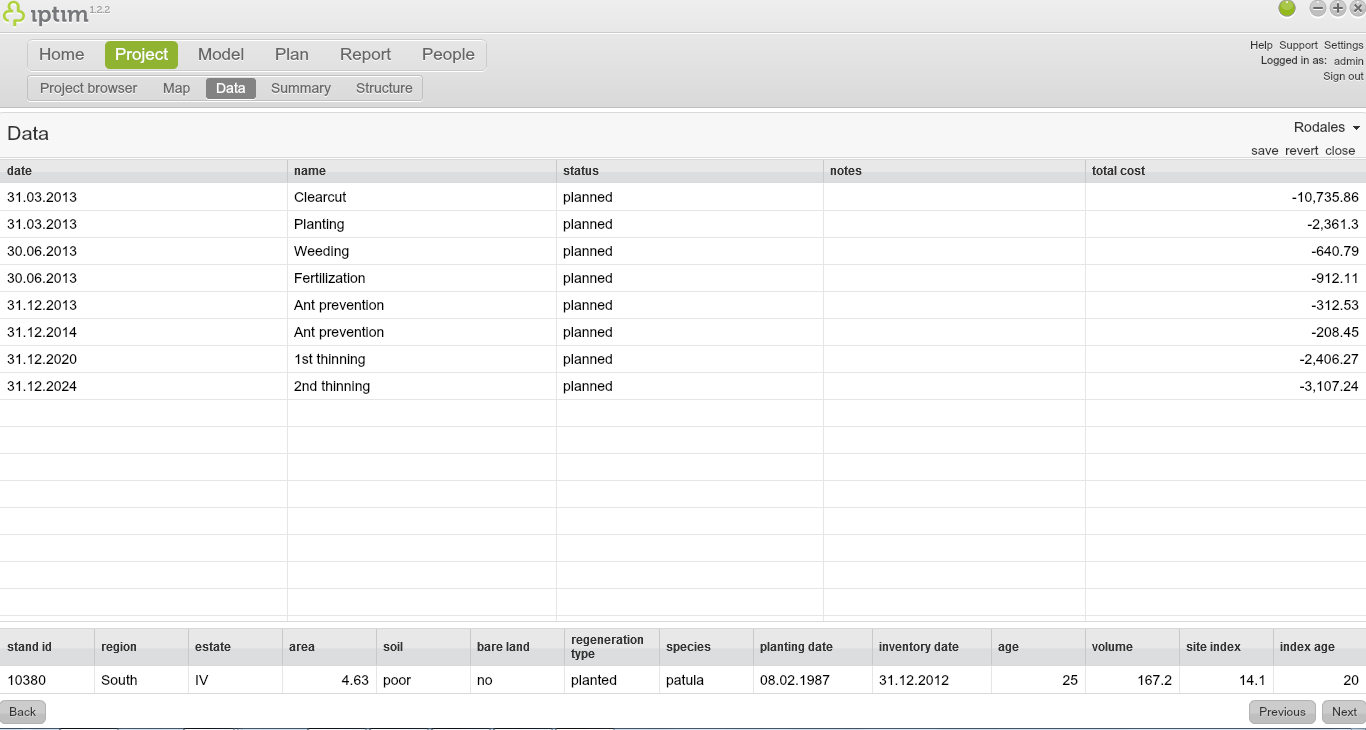
Manual modification of data
To modify data manually:
- click on the window Data in the module Project.
- double click on a cell which you wish to modify.
- enter the new value and press 'Enter'.
- click on save.
Note: You can access the article Project structure to review information about data properties and structure.
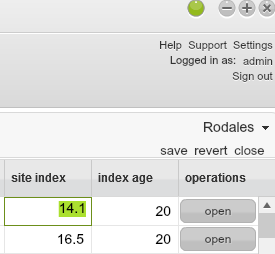
Manually modifying data.
Comments
0 comments
Please sign in to leave a comment.